Lecture 12 | Module 3: Virtual Assistance
FA Facilitator Oct 28, 2026 20 pages 4 views PPTX
Free preview: 3 of 20 pages
Paid
Pages 4 to 20 are for buyers
Buy once and read it in full on any device, any time.
Freelancing Mastery Course - 30 Complete Lectures (6 Modules)
18 documents in this bundle
$49.00
$19.00
Get full access
Bought it already? Log in to read.
About this document
VA Use: Set up a template for each recurring client task — saves setup time and ensures consistency every week. VA Use: Client task list links to their project page, team calendar and weekly report — all updated automatically. Without time tracking, hourly VA work becomes guesswork — both for you and the client.
Document text
T H E F A C I L I T A T O R S A C A D E M Y
Lecture 12 | Module 3: Virtual Assistance
VA Tools
Mastery
Hands-on mastery of every tool
a professional VA uses daily
Duration: 60–70 minutes • Laptop required — tools open throughout
Supervised by: Muhammad Sohail Ashraf
20+ Years Freelancing Experience
The Facilitators Academy • Lecture 12: VA Tools Mastery • thefacilitators.net • +92 304 5224838
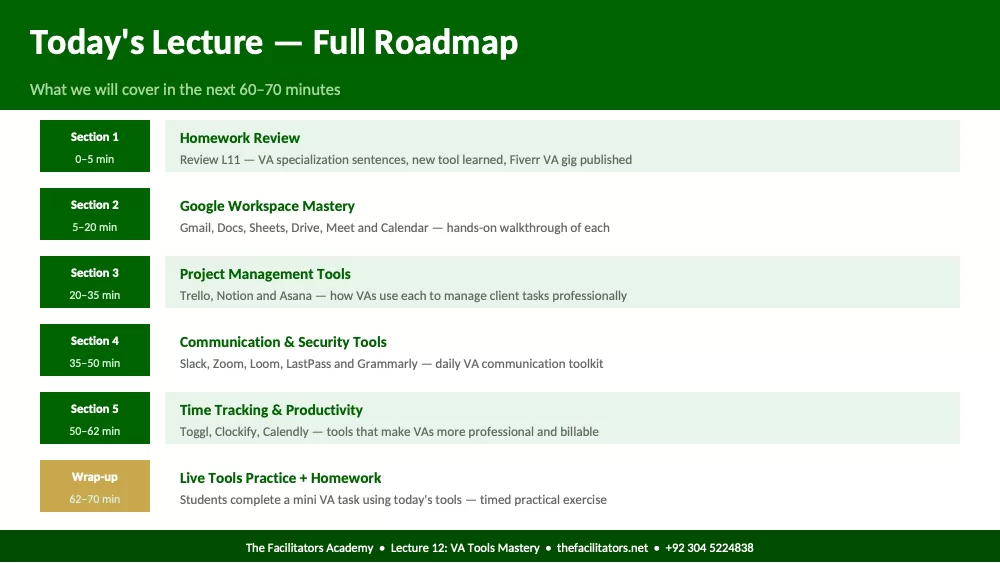
Today's Lecture — Full Roadmap
What we will cover in the next 60–70 minutes
Section 1
0–5 min
Homework Review
Review L11 — VA specialization sentences, new tool learned, Fiverr VA gig published
Section 2
5–20 min
Google Workspace Mastery
Gmail, Docs, Sheets, Drive, Meet and Calendar — hands-on walkthrough of each
Section 3
20–35 min
Project Management Tools
Trello, Notion and Asana — how VAs use each to manage client tasks professionally
Section 4
35–50 min
Communication & Security Tools
Slack, Zoom, Loom, LastPass and Grammarly — daily VA communication toolkit
Section 5
50–62 min
Time Tracking & Productivity
Toggl, Clockify, Calendly — tools that make VAs more professional and billable
Wrap-up
62–70 min
Live Tools Practice + Homework
Students complete a mini VA task using today's tools — timed practical exercise
The Facilitators Academy • Lecture 12: VA Tools Mastery • thefacilitators.net • +92 304 5224838
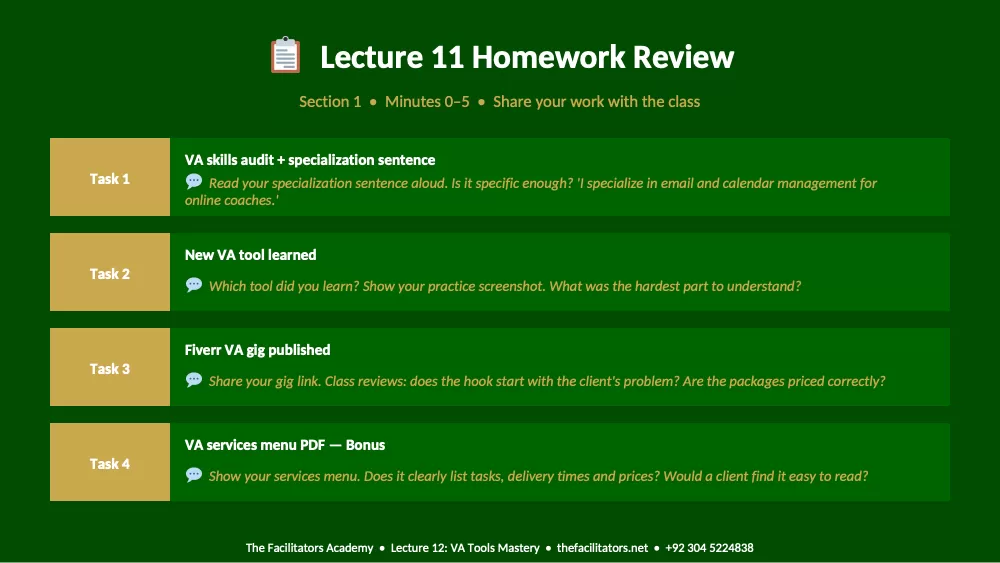
Lecture 11 Homework Review
Section 1 • Minutes 0–5 • Share your work with the class
Task 1
VA skills audit + specialization sentence
Read your specialization sentence aloud. Is it specific enough? 'I specialize in email and calendar management for
online coaches.'
Task 2
New VA tool learned
Which tool did you learn? Show your practice screenshot. What was the hardest part to understand?
Task 3
Fiverr VA gig published
Share your gig link. Class reviews: does the hook start with the client's problem? Are the packages priced correctly?
Task 4
VA services menu PDF — Bonus
Show your services menu. Does it clearly list tasks, delivery times and prices? Would a client find it easy to read?
The Facilitators Academy • Lecture 12: VA Tools Mastery • thefacilitators.net • +92 304 5224838
Section 2
Google Workspace Mastery
Minutes 5–20 • Gmail, Docs, Sheets, Drive, Meet and Calendar
The Facilitators Academy • Lecture 12: VA Tools Mastery • thefacilitators.net • +92 304 5224838
Google Workspace — Your Core VA Operating System
Every VA uses these tools daily — mastering them separates beginners from professionals
Google Workspace is completely free. Every client uses at least one of these tools. A VA who masters all 6 tools can work with ANY client
on ANY project from day one.
Gmail: Client email management hub. Learn: labels, filters, canned responses, undo send, schedule send. Most
VA email work happens here. gmail.com
Google Docs: Client document creation. Learn: comment mode, suggesting edits, version history, sharing permissions,
template creation. docs.google.com
Google Sheets: Data tracking, reporting, budgets. Learn: basic formulas (SUM, IF, VLOOKUP), conditional formatting, data
validation, filters. sheets.google.com
Google Drive: Client file storage and sharing. Learn: folder organization, sharing settings, starred items, searching,
offline access. drive.google.com
Google Meet: Client video calls and team meetings. Learn: screen sharing, recording, breakout rooms, backgrounds,
meeting links. meet.google.com
Google Calendar: Scheduling and time management. Learn: creating events, invites, time zones, recurring events, sharing
calendars, blocking time. calendar.google.com
The Facilitators Academy • Lecture 12: VA Tools Mastery • thefacilitators.net • +92 304 5224838
Gmail & Google Sheets — Deep Dive
The two most used tools in VA work — master these first
Gmail VA Power Features
Labels: Create color-coded labels: Urgent / Waiting / Done / Client
Name. Drag emails into labels — inbox stays clean.
Filters: Settings → Filters → Auto-label emails from specific
senders. Saves 30 min/day of manual sorting.
Canned Responses: Settings → Advanced → Canned Responses. Save 10
common replies. Send professional responses in 2 clicks.
Schedule Send: Write email → click arrow next to Send → Schedule. Deliver
emails at optimal times for the client's timezone.
Undo Send: Settings → General → Undo Send → 30 seconds. Catches
mistakes before client sees them. Enable immediately.
Templates: Create email templates for common VA responses —
meeting confirmations, follow-ups, status updates.
Google Sheets VA Essentials
=SUM(A1:A10) Add up a range of numbers. Client
expense tracking, invoice totals.
=IF(A1>100,'Yes','No') Conditional logic. Flag overdue invoices,
mark completed tasks.
=VLOOKUP() Look up data from another sheet. Match
client names to their data automatically.
Freeze Rows View → Freeze → 1 Row. Keep headers
visible while scrolling through long data.
Conditional Format Format → Conditional Formatting. Color
cells red if overdue, green if complete.
Data Validation Data → Data Validation. Create
dropdown lists for consistent data entry.
Filter Views Data → Filter Views. Each team member
can filter without affecting others' view.
The Facilitators Academy • Lecture 12: VA Tools Mastery • thefacilitators.net • +92 304 5224838
Section 3
Project Management Tools
Minutes 20–35 • Trello, Notion and Asana for client task management
The Facilitators Academy • Lecture 12: VA Tools Mastery • thefacilitators.net • +92 304 5224838
Trello — The VA's Most Popular Project Management Tool
Simple, visual and free — used by millions of businesses worldwide for task management
Trello uses boards, lists and cards to organize work visually. It takes 10 minutes to learn the basics and is used by over 50 million people
worldwide. Most clients will ask if you know Trello.
Trello Basics — How It Works
Board: One board per project or
Showing the first pages. Read the full document above.
Comments (0)
Log in to join the discussion.